Pinboards
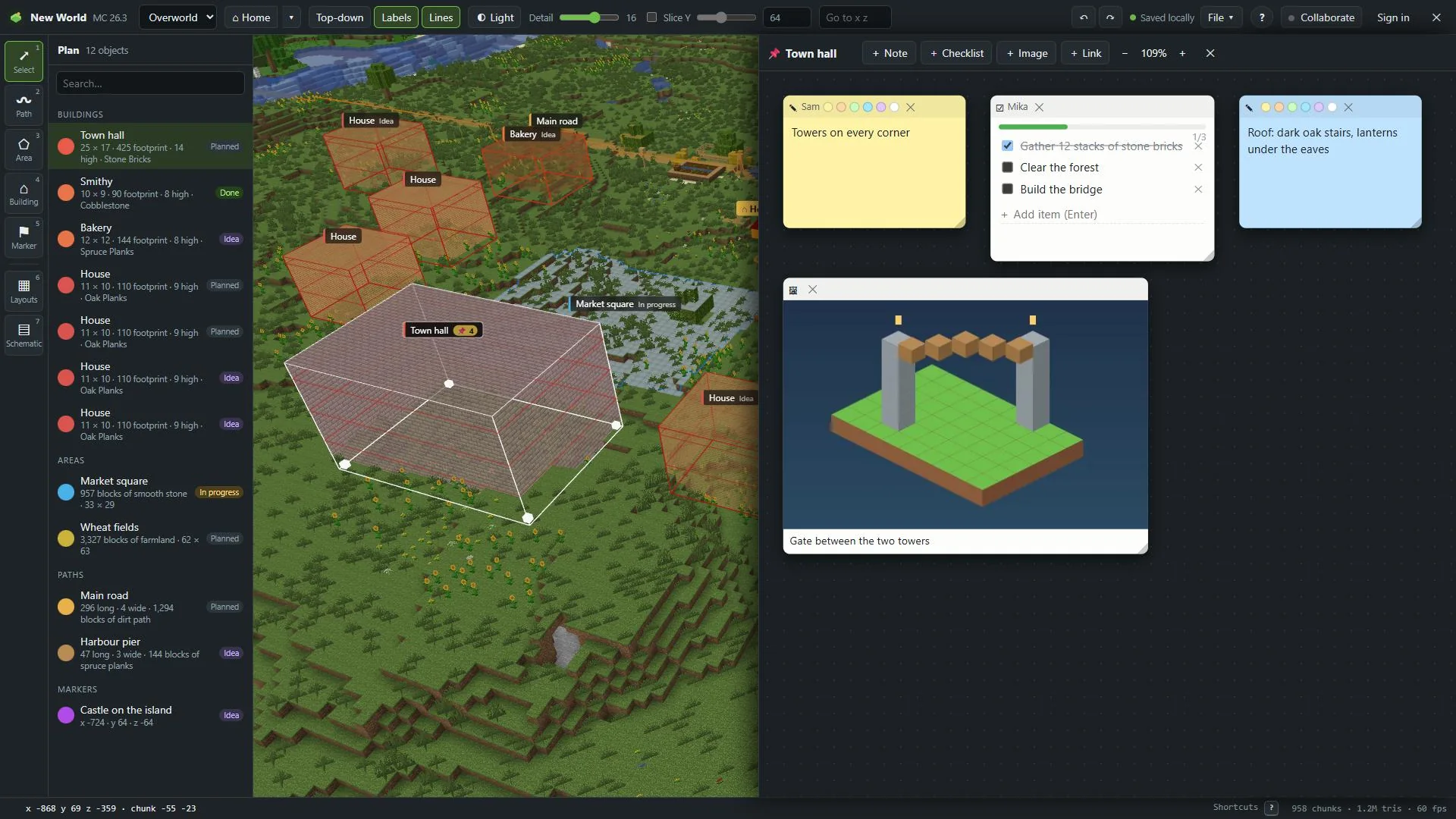
Every object has its own pinboard for notes, checklists, pictures and links. Collect ideas for your build right next to it on the map.
For App · browser and desktop · Updated
You'll open the pinboard of a building and pin notes, a checklist, pictures and links on it. Free to plan alone · No account
Open the pinboard
Select the object and press Pinboard (the pin) in the inspector. The number next to it says how many cards are on it.
Add cards
The buttons at the top:
- Note: a sticky note. Pick its colour with the dots on the card.
- Checklist: type an item and press Enter. Tick items as you go: a bar shows how far you are.
- Image: pictures from your computer.
- Link: a website, a Pinterest pin, a YouTube video…
Paste and drop
Faster: copy a screenshot or a link and press Ctrl+V on the board. Or drop image files onto it.
Arrange them
Drag a card by its top bar, resize it at its bottom corner. Drag the empty board to move around, scroll to zoom. The % button fits all cards in view.
Good to know
- Double-click a picture to see it big. Images also get a caption.
- X on a card removes it. Ctrl+Z brings it back.
- Links show a preview when the site allows it. Instagram doesn't: paste a screenshot of the post instead.
- Esc or X at the top closes the board.
Pictures and plan files
Pictures are kept in this browser. When you save a plan file, leave Include pinboard images ticked so the boards work on another computer too. The file gets bigger.
In a shared world, a picture shows for others once the person who added it is online.