Day & night and light levels
See your world and your plan at sunrise, noon, sunset or night, with Minecraft's own light levels. Spot the places that stay dark.
For App · browser and desktop · Updated
You'll switch on Minecraft lighting, pick a time of day and look for the dark spots in your plan. Free to plan alone · No account
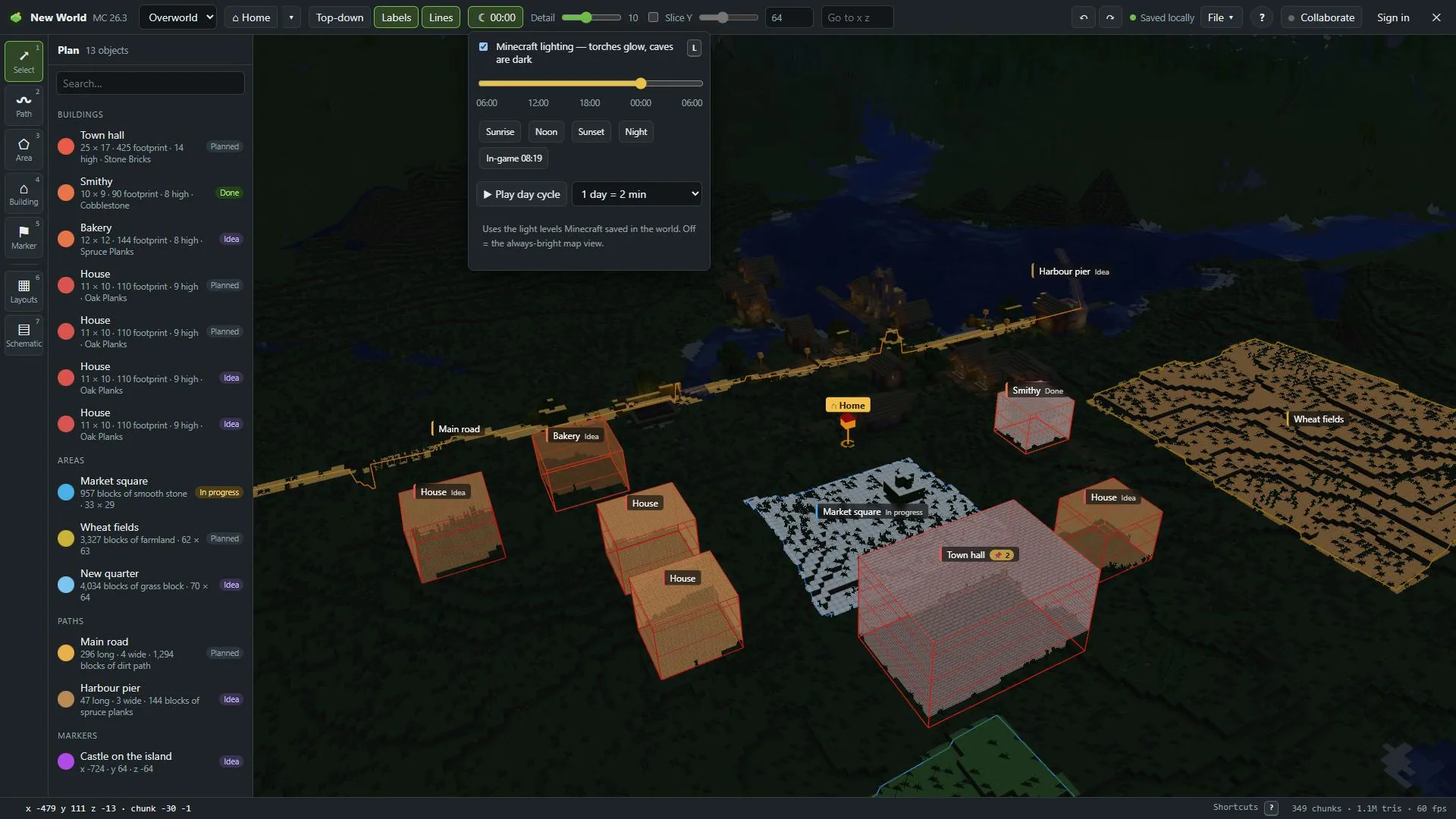
Switch the lighting on
Press L. Or click Light in the top bar and tick Minecraft lighting — torches glow, caves are dark. The button now shows the time, for example 12:00.
Pick a time
In the same menu, drag the slider through the day, or press Sunrise, Noon, Sunset or Night. In-game jumps to the time saved in your world.
Let the day run
Play day cycle runs the clock. Pick the speed: 1 day = 2 min, 1 day = 20 min (real Minecraft) or 1 day = 30 s. Pause stops it.
Switch it off
L again, or untick the box. You're back to the always-bright map view.
Light levels
The lighting uses the light levels Minecraft saved in your world. Torches, lanterns and lava glow, caves are dark, and at night the open ground goes dark too.
Use it to check a plan before you build:
- Walk a path at Night: where does it need lamps?
- Look into caves and basements with Slice Y.
- Mark dark spots with a marker named "lamp here".
Light from your plan
The light comes from the blocks that are already in your world, as Minecraft saved it. Planned objects don't give off light. Torches you place in the game show once you open the saved world again.