Open your world
Open a Java Edition world in MC Planner, from its folder or a .zip. Where your worlds are for every launcher, and what works with modded worlds.
For App · browser and desktop · Updated
MC Planner only reads your world. It never changes your save. Your plans are stored on their own.
Pick a world
"Which world are we planning?" There are three ways:
Drop the world folder
Drag the world's own folder (the one inside saves, with a level.dat in it) onto the window.
…or a .zip of it
Drop a .zip of the world folder, or click Drop your world here to choose one.
…or choose the folder
Press Choose the world folder and pick it. No zipping needed.
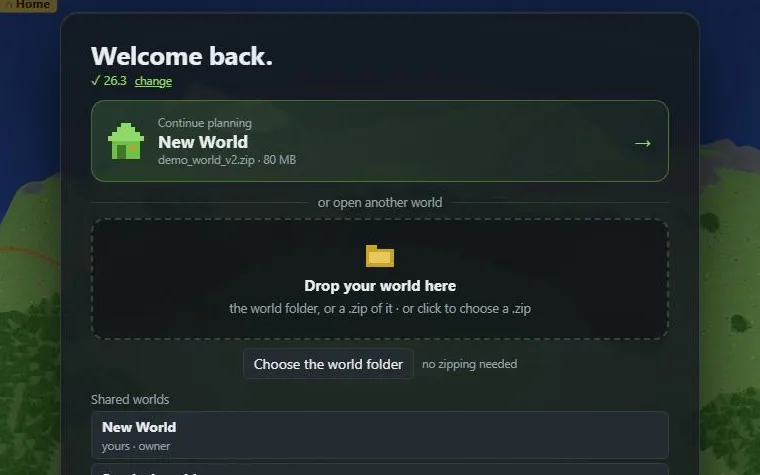
- 1: Drop your world here
- 2: Choose the world folder
The desktop app lists the worlds it found on your computer. Click one and it opens in place, straight from your saves folder.
Where are my worlds?
Every folder in saves is a world. Where are my worlds? on the card shows the folder for the launcher you picked, with Copy.
Official launcher: the saves folder itself.
- Windows:
%APPDATA%\.minecraft\saves - macOS:
~/Library/Application Support/minecraft/saves - Linux:
~/.minecraft/saves
Modrinth App: open your profile, then saves.
- Windows:
%APPDATA%\ModrinthApp\profiles - macOS:
~/Library/Application Support/ModrinthApp/profiles - Linux:
~/.local/share/ModrinthApp/profiles
CurseForge: open your instance, then saves.
- Windows:
%USERPROFILE%\curseforge\minecraft\Instances - macOS:
~/Documents/curseforge/minecraft/Instances - Linux:
~/curseforge/minecraft/Instances
Prism Launcher: open your instance, then .minecraft (or minecraft) → saves.
- Windows:
%APPDATA%\PrismLauncher\instances - macOS:
~/Library/Application Support/PrismLauncher/instances - Linux:
~/.local/share/PrismLauncher/instances
How to open a folder: Bring your blocks → Open the folder.
Make a .zip
- Windows: right-click the world folder → Compress to ZIP file (Windows 10: Send to → Compressed folder).
- macOS: right-click the world folder → Compress.
- Linux: right-click the world folder → Compress….
Versions, mods and dimensions
- Minecraft: Java Edition 1.18 and newer. MC Planner is built for 26.2. Bedrock Edition isn't supported.
- Modded worlds open too, with their extra dimensions. The top bar shows the version and "modded".
- Dimensions: the menu next to the world's name switches between the Overworld, the Nether, the End and modded dimensions.
- Modded blocks need the mod's
.jarfor their textures: Resource packs and textures from mods.
The next time
- Welcome back. → Continue planning opens your last world again.
- In the browser: "Recent worlds (kept in this browser)" lists the last five
.zipworlds you opened, and Continue planning works for those. A world folder you dropped needs dropping again. - In the desktop app: worlds are read in place. When Minecraft saves the world you have open, a banner offers Reload map.