Paths
Draw roads, paths, rails and rivers point by point on your world. Pick their width and block, and see how many blocks they take.
For App · browser and desktop · Updated
You'll draw a path on the map, set its width and block, and read how many blocks it takes to pave. Free to plan alone · No account
Pick the Path tool
Press 2 or click Path in the toolbar on the left. The hint at the bottom says "Click to add path points".
Click your points
Click on the map for every bend of the road. While you draw, the hint shows how long it is and how many blocks it takes at width 3.
- Backspace removes the last point.
- Esc throws the draft away.
Finish it
Press Enter or double-click. The path is selected, the tool goes back to Select / move, and the inspector opens on the right.
Set width and block
- Width (blocks): 1 to 32. New paths start at 3.
- Material: the block it's made of, for example Gravel or Dirt Path. More in Blocks & block counts.
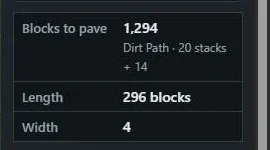
The numbers
At the bottom of the inspector:
- Blocks to pave, with stacks of 64 next to it
- Length, along the middle of the path
- Width
Change the width or move a point and the numbers follow.
Change it later
- Drag the white corner handles to move a point.
- Drag the path itself to move it all. Alt+→ nudges it by 1 block, with Shift by 10.
- Rotate 90° (or R), Duplicate (Ctrl+D) and Delete are at the bottom of the inspector.
A village along your road
A selected path has a Village along this path… button. It puts houses on both sides of the road. See Layouts.