Place, turn and mirror a schematic
Put an imported schematic on your map, turn it, mirror it and place it more than once. Move it later, and set the level its bottom layer sits on.
For App · browser and desktop · Updated
Put the build where it belongs: on the map, facing the right way, as often as you need it.
Start placing
In the Schematics panel (7), press Place next to the schematic. Right after importing, Place on map does the same.
The panel says "Click on the map to place" with the schematic's name, and a see-through preview follows your mouse.
Turn and mirror it
- R or Turn turns it a quarter turn. Shift+R turns it the other way.
- F or Mirror flips it.
The hint at the bottom of the map shows its size as it is now, for example "12 × 9 · 7 high".
Click to place
Click on the map. The building sits on the ground under it.
Need the same build more than once, like a row of houses? Hold Shift while you click: you keep placing. Esc or Stop ends it.
Change it later
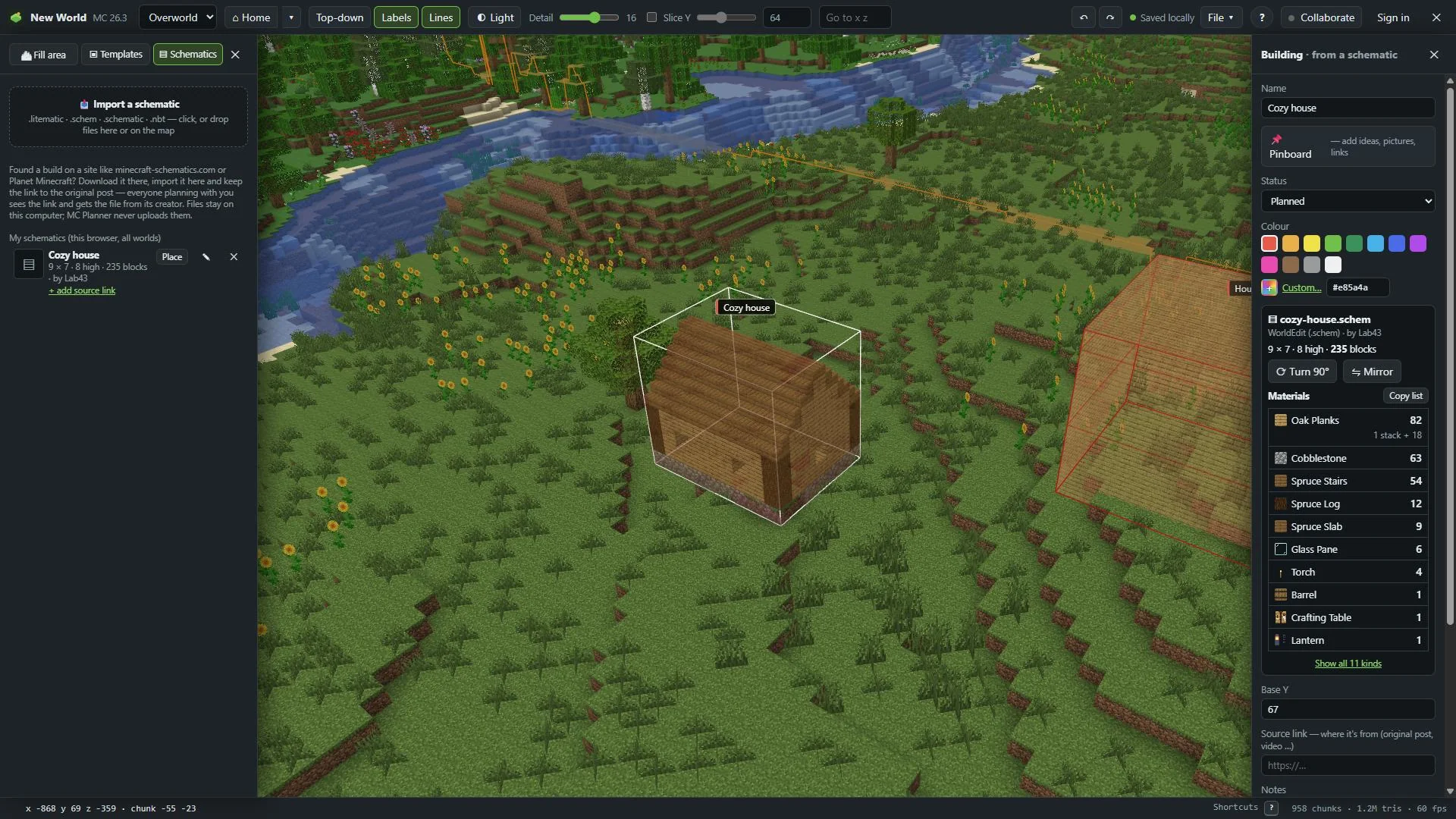
Click the building to select it. On the right it says "Building · from a schematic", with the file, the format and the size.
- Move it: drag it. A schematic keeps its size, so it has no corner handles.
- Turn 90° and Mirror (or R and F) turn and flip it in place.
- Base Y is the level its bottom layer sits on. Lower it by 1 if the file includes the ground.
Everything else works like for any building: name, status, notes and the Source link.
When it shows as a plain box
A box with no blocks means the schematic file isn't on this computer. That happens when a friend placed it, or when you opened the plan on another computer. The building says "The schematic file isn't on this computer". Get the file from its source link and press Import the file…: the blocks show up. More: Why schematic files are never shared.
Picked a different file than the one it was made from? MC Planner asks first: Use it for the building, or Keep the old one.
In Minecraft
With the mod, a placed schematic shows in the game as see-through ghost blocks, turned and mirrored the same way: Schematic ghost blocks.